.webp?width=350&height=54&name=2026%20Jan%20Adaptive%20Logo%20(350%20X%2054).webp "2026 Jan Adaptive Logo")


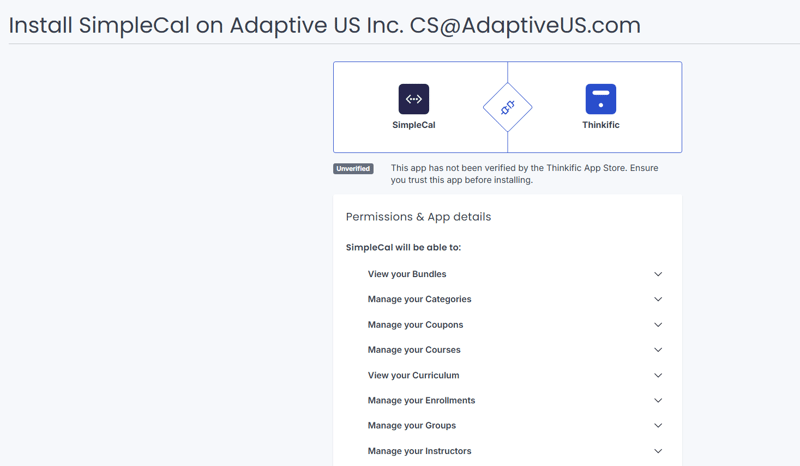
Click on Accept & Install
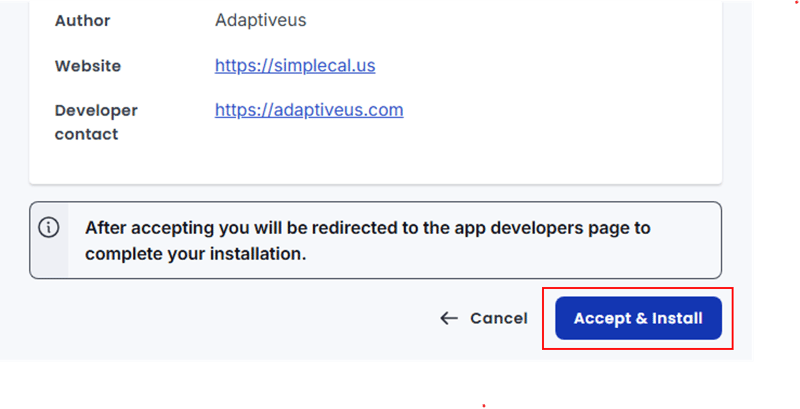

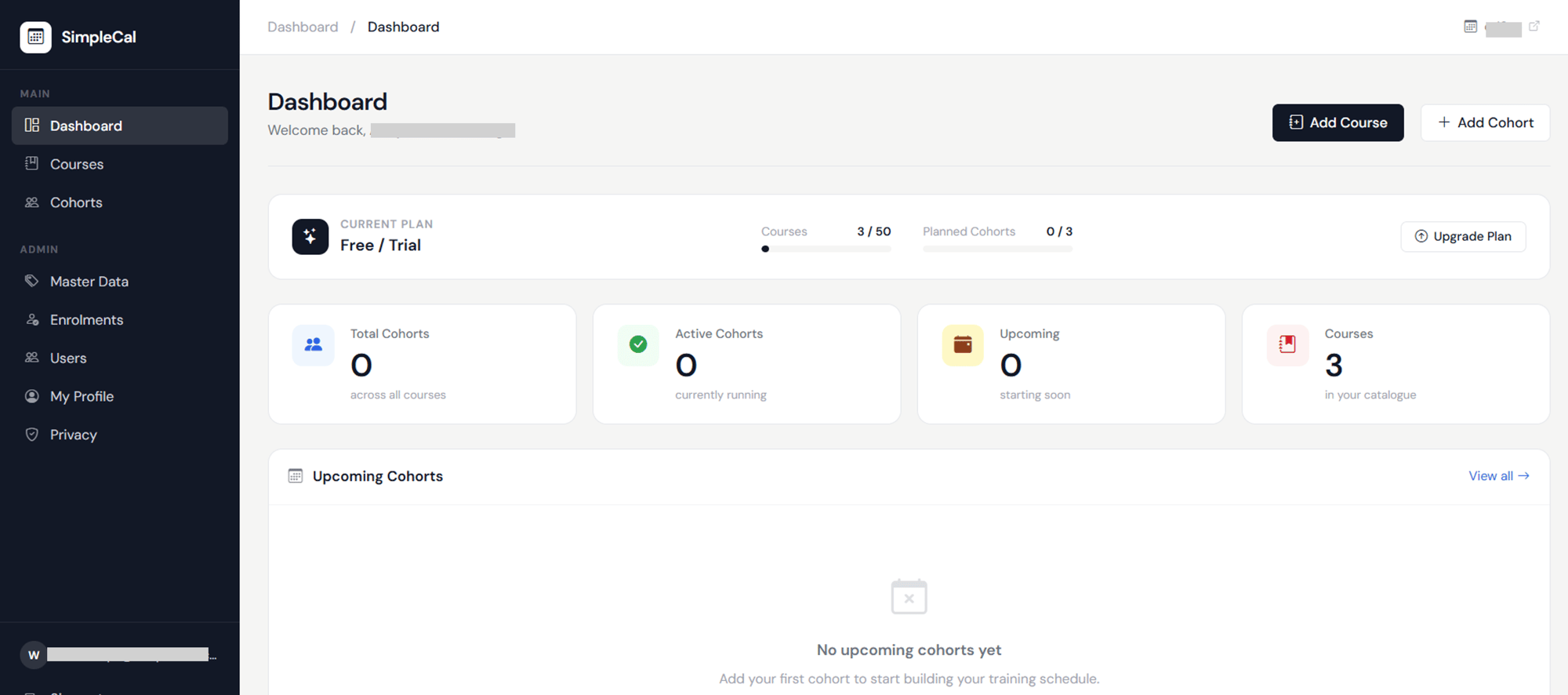
- Dashboard indicates the main overview page of the application.
- Add Course – Button to create a new course in the system. If you have connected using the Thinkific account, your courses will be fetched automatically.
- Add Cohort – Button to create a new training batch for a Thinkific course.
Summary Cards:
- Total Cohorts – Displays the total number of cohorts across all courses.
- Active Cohorts – Shows the number of cohorts currently in progress.
- Upcoming – Indicates cohorts that are scheduled to start soon.
- Courses – Displays the total number of courses available in the catalogue.
Upcoming Cohorts Section:
- Upcoming Cohorts List – Shows details of cohorts that are scheduled next.
- View All – Navigates to the complete list of upcoming cohorts.
- Empty State Message – Informs the user that no cohorts are scheduled yet and prompts action.
Sidebar Navigation:
- Dashboard – Takes the user to the overview page.
- Courses – Navigates to course management.
- Cohort – Navigates to cohort management.
- Master Data – Access to system-level configurations.
- Users – Manage user accounts and access.
- My Profile – View and edit personal profile details.
- Privacy – Manage privacy-related settings.
- Sign Out – Logs the user out of the application.
How to View/Add Courses
Here, you'll be able to see all your Thinkific courses.

By default, SimpleCal retrieves information such as Course Name, Category (defaulted to Business Analysis), Description, Course Description Link, Currency, Retail Price, Has Cohorts (defaulted to Yes, implying that all thinkific courses have a cohort).
If you wish to edit any fields for a particular course, you can search for that course using the search bar and click on Edit to make the necessary changes.


- Course Name – The title of your course as shown to learners.
- Category – The subject or domain under which the course is classified.
- Description – A brief overview of what the course includes and its key benefits. This is for internal purposes and will not be displayed in the calendar
- Course Description Link – A URL directing learners to the detailed course page. In the calendar display, this will appear as "Class Details >"
- Currency – The currency in which the course price is set.
- Retail Price – The standard price of the course before any discounts. All cohorts associated with this course will pick up the retail price.
- Offer Price – The discounted price offered to learners, if applicable. All cohorts associated with this course will pick up the offer price.
- Price Includes Tax – Indicates whether the listed price already includes taxes.
- Coupon Code – A code that learners can use to avail discounts.
- Course Purchase Link – The direct link for learners to purchase the course. In the calendar display, this will appear as Enroll Now button
- Has Cohorts – Indicates that the course is delivered through scheduled cohort sessions.
- Save Changes – Saves and applies all updates made to the course.
- Cancel – Discards changes and exits without saving.
If you wish to add a cohort independently of a course in Thinkific, you can click on Add Cohort, provide all the necessary details and also provide the link for enrollment/payment in the course purchase link field.
How to Add Cohorts
Navigate to the Cohort section either from the left side panel or from the dashboard > Add Cohort button.
Select the Thinkific course for which you want to create the Cohort.


- Course – Select the course for which this cohort is being created.
- Cohort Name – Provide a unique name to identify this batch of learners.
- Mode of Delivery – Define how the training will be conducted (e.g., virtual, classroom).
- Location – Specify the platform or physical venue where sessions will happen.
- Session Dates – Enter all training dates for the cohort, separated by commas or pipes.
Schedule Section:
- Start Date – The date when the cohort begins.
- Start Time – The daily session start time.
- End Time – The daily session end time.
- Time Zone – The time zone applicable to the session timings.
Status Section:
- Training Status – Indicates the current state of the cohort (e.g., Planned, Ongoing, Completed).
Click on Save Cohort to save the details

You can also import cohorts in bulk using the Excel Import functionality.
Remember to use the sample template to fill the data. Modifying the template structure and field headers will result in failure to import.

How to View Your Calendar
To get a glimpse of how your calendar would look like, you can click on the expand icon on the top right corner as shown below.

This is how your calendar view will look like.

How to Manage Master Data
This is where you manage your drop-down values. Some values exist by default, however you can add more by clicking on the Add Lookup button.

You can add data / drop down values for the below categories.

You can then provide the value (Eg: Lookup Type - Course Category and Lookup Value - Artificial Intelligence) and set it as default or lock the record.

How to Access Your Profile
Under My profile, you can manage personal info, password modification, school & domain, appearance such as dark theme or light theme etc.

How to embed the calendar in your website / landing page
Under Appearance tab, turn on the component/Embed Mode toggle switch, copy the code and paste it as an html code in your website / landing page. You may require a developer's assistance for this.

Final appearance on your website


 Contact Us